Cisco Nexus Switch SSH login with YubiKey using X.509 certificate - Part I (two-factor and local AAA)
In the blog we will configure Cisco Nexus switch SSH login with YubiKey smartcards and X.509 certificates. The implementation has a limitation on the SSH client side. We must use a proprietary SSH-client. As of my knowledge; only two commercial/proprietary SSH-client support the functionality - SecureCRT and Pragma Fortress SSH Client.
It will be two part series - in Part-I - AAA for SSH will be implemented locally in the switch and in Part-II - AAA will be implemented in a remote AAA server with TACACS+ protocol (Cisco ISE).
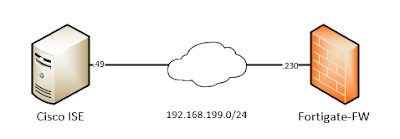
We will use below simple topology -
 |
| 01 - Network Topology |
We have already configured a YubiKey with user certificate/key (user's public/private key). Certificate related configuration like - configuring CA, issuing user certificates from the CA and transferring the user's certificates to YubiKey; will not be covered in this blog. One can easily find those by using simple Google search.
This method of X.509 certificate based SSH-Login works solely by trusting only the CA certificate. The SSH-client will send the user's public certificate to the SSH-server and the server authenticates the user if it also trusts the same CA who issued the user's certificate.
Note: We do not need to install the CA certificate in the YubiKey or in the SSH client's operating system. The CA certificate (public key) needs to be installed in the Switch only.
Let's check our user certificate from Windows -
# certutil -user -store My
My "Personal"
================ Certificate 0 ================
Serial Number: Removed
!!! CA (Issuer) DN.
Issuer: CN=red-ca, O=Removed, S=Removed, C=Removed
NotBefore: Removed
NotAfter: Removed
!!! User DN.
Subject: O=RedCompany, CN=redlocal, C=SE
Non-root Certificate
Cert Hash(sha1): Removed
Key Container = Removed
!!! Provider is smart card which means YubiKey.
Provider = Microsoft Smart Card Key Storage Provider
Now we have verified we have a user certificate installed in YubiKey which is issued by a CA named - red-ca.
Let's start configuring the Nexus switch -
!!! IP connectivity and NTP configuration.
interface Ethernet1/1
no switchport
ip address 172.29.215.97/24
no shutdown
ip route 0.0.0.0/0 172.29.215.1
clock timezone CET 1 0
clock summer-time CEST 2 Sun Mar 02:00 1 Sun Nov 02:00 60
!!! NTP is required to check certificates validation date etc.
ntp server X.X.X.X use-vrf default
Now the actual SSH-server configuration for X.509 certificate based login where the AAA will be done locally on the switch.
!!! CA trustpoint creation to upload the CA certificate.
crypto ca trustpoint red-ca type x509
!!! As this is a lab, CRL checking is disabled intentionally.
revocation-check none
!!! CA certificate will be added by copy/paste into the terminal directly.
enrollment terminal
!!! Copy/Paste the CA certificate.
!!! If you have root, intermediate CAs copy/paste all the CA certificates together.
!!! We do not need several trustpoint for CA-hierarchy.
!!! The format for certificate used is PEM.
crypto ca authenticate red-ca
!!! Verify the CA certificate.
# show crypto ca certificates
Trustpoint: red-ca
CA certificate 0:
subject=C = Removed, ST = Removed, O = Removed, CN = red-ca
issuer=C = Removed, ST = Removed, O = Removed, CN = red-ca
serial=Removed
notBefore=Removed
notAfter=Removed
SHA1 Fingerprint=Removed
purposes: Removed
Now we need to create a local user in the switch which corresponds to the person for which the X.509 certificate is issued.
!!! username will be exactly same as user certificate's CN.
!!! If we define password for the user, they can login with both password/certificate.
username redlocal password <Removed> role network-admin
or
!!! User can only login with certificate.
username redlocal role network-admin
!!! Bind the user certificate's DN with the local user in the switch.
!!! The certificate DN and user DN defined in the switch must match exactly.
!!! Without exact match of the DN; the SSH login will be failed. DN is also case sensitive.
username redlocal ssh-cert-dn "/O = RedCompany, C = SE, CN = redlocal" rsa
Verify the user information -
# show user-account
user:redlocal
this user account has no expiry date
roles:network-admin
!!! No password set of the user account; only certificate login allowed.
!!! Ignore the warning about "Local login not allowed". Local login works.
no password set. Local login not allowed
Remote login through RADIUS/TACACS+ is possible
ssh cert DN : /O = RedCompany, C = SE, CN = redlocal; Algo: x509v3-sign-rsa
After above our switch configuration is completed for X.509 based login. As we are doing AAA locally on the switch; it is always recommended to enable proper logging in the switch. Optionally adjust the logging so that all configuration commands are visible in the switch's local syslog.
logging console 7
logging logfile messages 7
!!! Configuration mode commands will be logged in the switch's local logfile.
logging level aaa 6
Now will configure our SSH client SecureCRT and try to login to the switch using YubiKey. We are using below settings for our SSH session in SecureCRT.
 |
| 02 - SecureCRT SSH session settings |
 |
| 03 - SecureCRT successful SSH login |
In above we have successfully logged into the switch using X.509 certificate stored in YubiKey.
Stay tuned for Part - II where we will use SSH X.509 certificate login with YubiKey and Cisco ISE as TACACS+ server.
Comments
Post a Comment